Trouble signing in
Use your Ronga username. Your email address works as a username only if your administrator set it up that way.
Check your details
- Check that the username is spelled correctly.
- Check Caps Lock and enter your password carefully.
- If the sign-in page reports that your session expired, refresh it before trying again.
- If access still fails, ask your company administrator to confirm your account, company and role are active.
An account access change can sign you out. Sign in again after your administrator confirms your access.
After repeated unsuccessful sign-in attempts, Ronga temporarily limits further attempts. Wait 15 minutes before trying again. Shared networks also have an overall limit. Do not keep retrying while a limit is active.
Reset a forgotten password
- Choose Forgot password? on the sign-in page.
- Enter the email address registered on your account and request a reset link.
- Check your inbox and spam folder. The confirmation message does not confirm whether an account exists for the address.
- Open the newest reset email. Its link expires after one hour and can be used once.
- Enter a new password of at least eight characters, confirm it and save.
- Return to sign in with the new password.
A newer reset request replaces older links. If a link has expired or was already used, request a fresh one.
Reset requests are limited to three per email address per hour and ten per network address per hour. The same confirmation appears for every valid email address, including requests that are temporarily limited. Allow an hour before requesting more links.
Successfully resetting a password signs out existing sessions and invalidates all earlier reset links. Use the new password to sign in again.
If the email does not arrive
Allow time for delivery, check spam and confirm that you used your registered email address. Ask your administrator for help if necessary. Never send anyone your password or reset link.
Sign out safely
Open your account menu and choose Log Out. Use this button to end the session. A saved sign-out URL cannot sign you out.
If a page fails
Check the address when Ronga reports that a page was not found. If Ronga reports an unexpected problem, try again later and give your administrator the displayed reference. Your password and reset link are never needed for support.
Find the installed version
The footer on signed-in pages shows the Ronga release tag. Include it when reporting a problem. Super administrators can open Release details to check the full commit and the last verified deployment time. A development installation shows development until a release build is installed.
Screen examples
These examples use fictional test records. The numbered arrows match the steps below. Your records and available controls follow your access.
Sign in
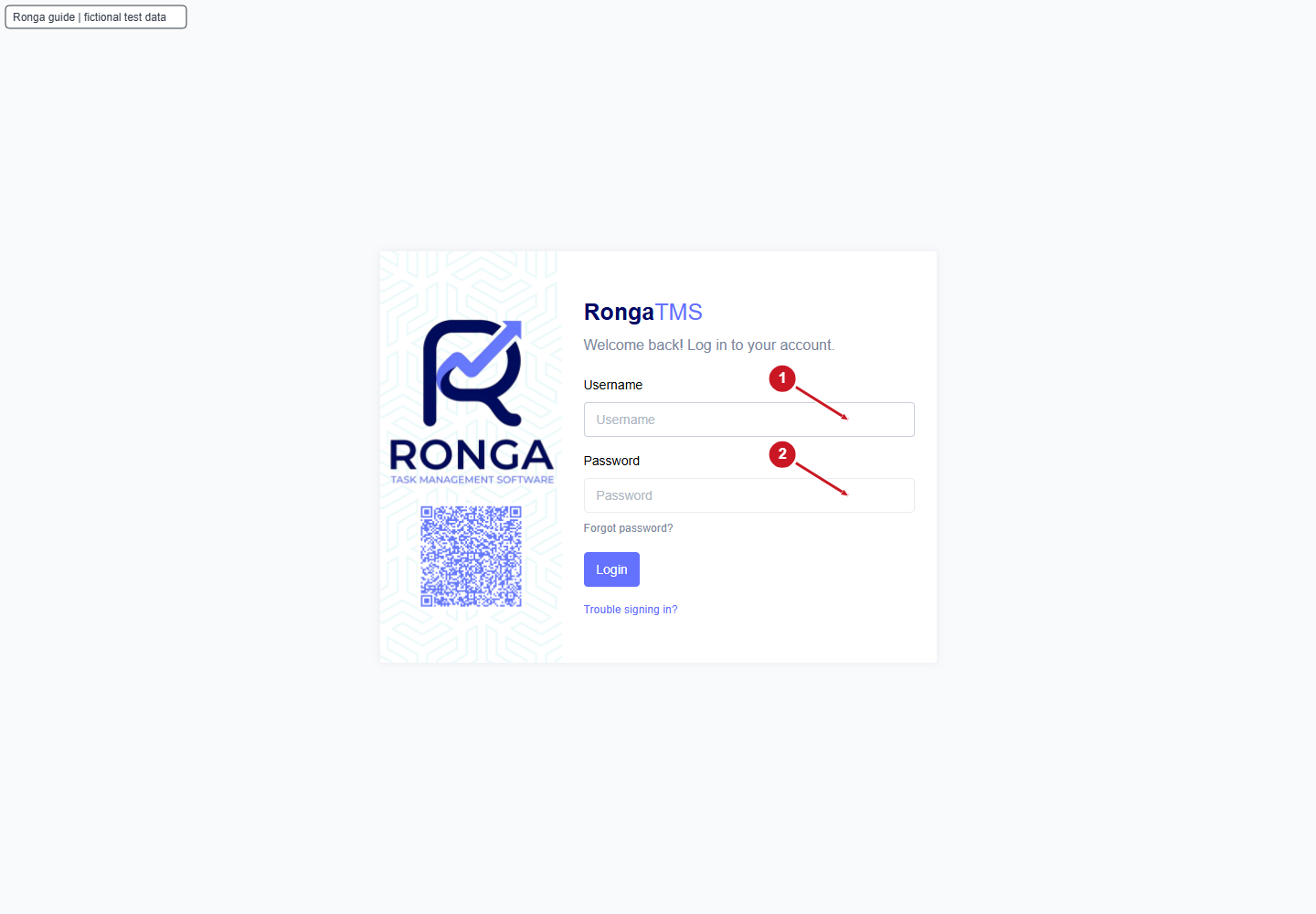
- Enter the username supplied by your administrator.
- Enter your password, then choose Login.
Password reset
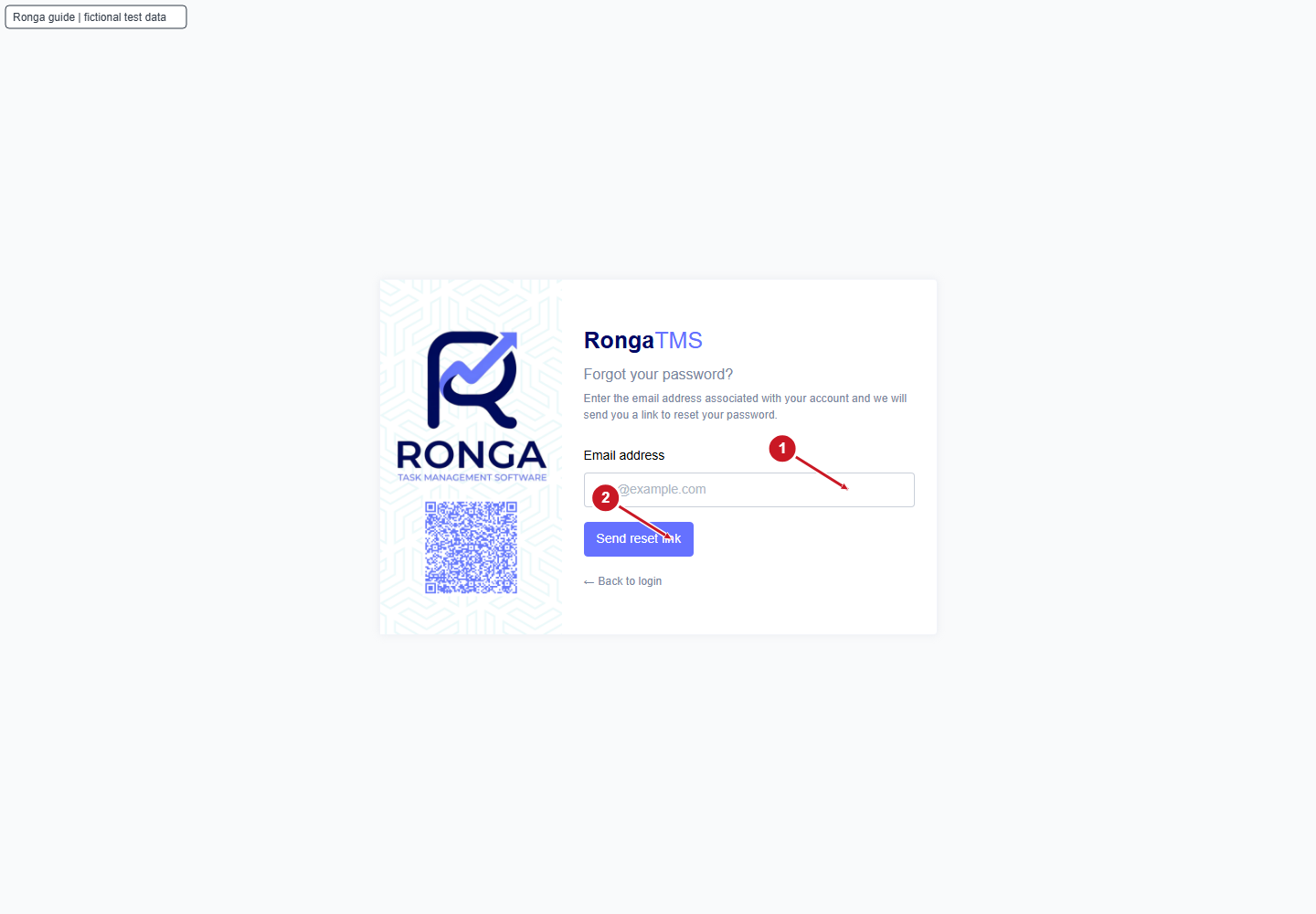
- Enter the email address registered on your account.
- Request the reset link and check your inbox. The response protects whether an account exists.